UGREEN Video Capture Card HDMI to USB Type C Capture Device
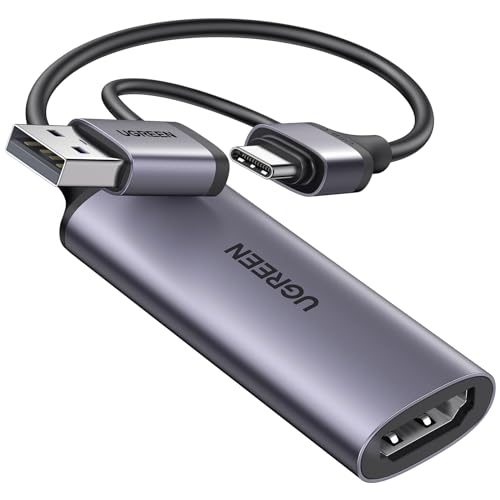
UGREEN Video Capture Card HDMI to USB Type C Capture Device 1080P 60FPS 4K Stream Record Audio Game Thunderbolt 4 Compatible with Switch PS4 PS5 Xbox TV Stick DSLR Camera iPad Pro Mac PC Laptop Phone
Quick Information About UGREEN Capture Card
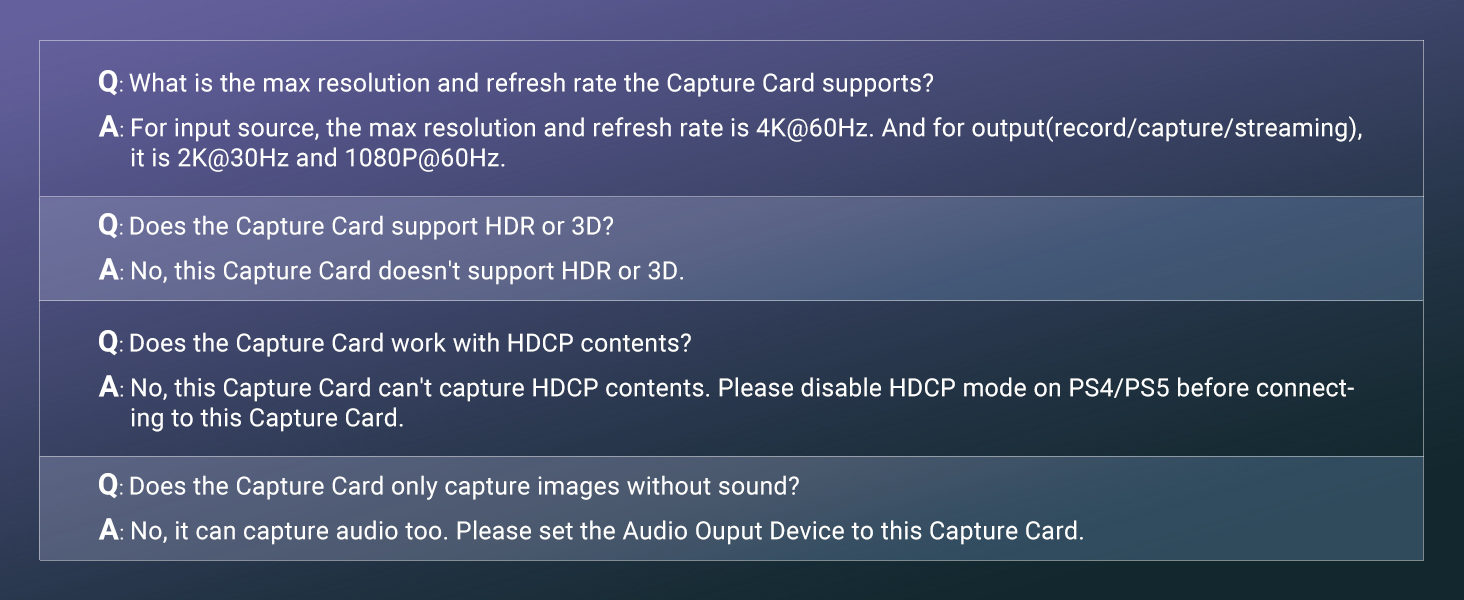
| HDMI Input | Support 4K@60Hz(4:2:0) and 4K@30Hz(4:4:4), for PS5, PS4, Switch OLED, Xbox Game Console, TV Stick, Streaming Box, DSLR Camera, Laptop, Computer |
| USB Output | Support 1080P@60Hz, for MacBook,iMac, iPad Pro/iPad Mini/iPad running iOS17, Laptop, Computer, Phone |
| Compatible Streaming Software | Twitch, YouTube, FaceBook, Tiktok, OBS Studio, XSplit, Potplayer, QuickTime Player and Streamlabs |
| Incompatibility | HDCP signals and Blu-ray Disc games on PS4/PS5/Xbox, so please disable HDCP before capturing; Not Support HDR |
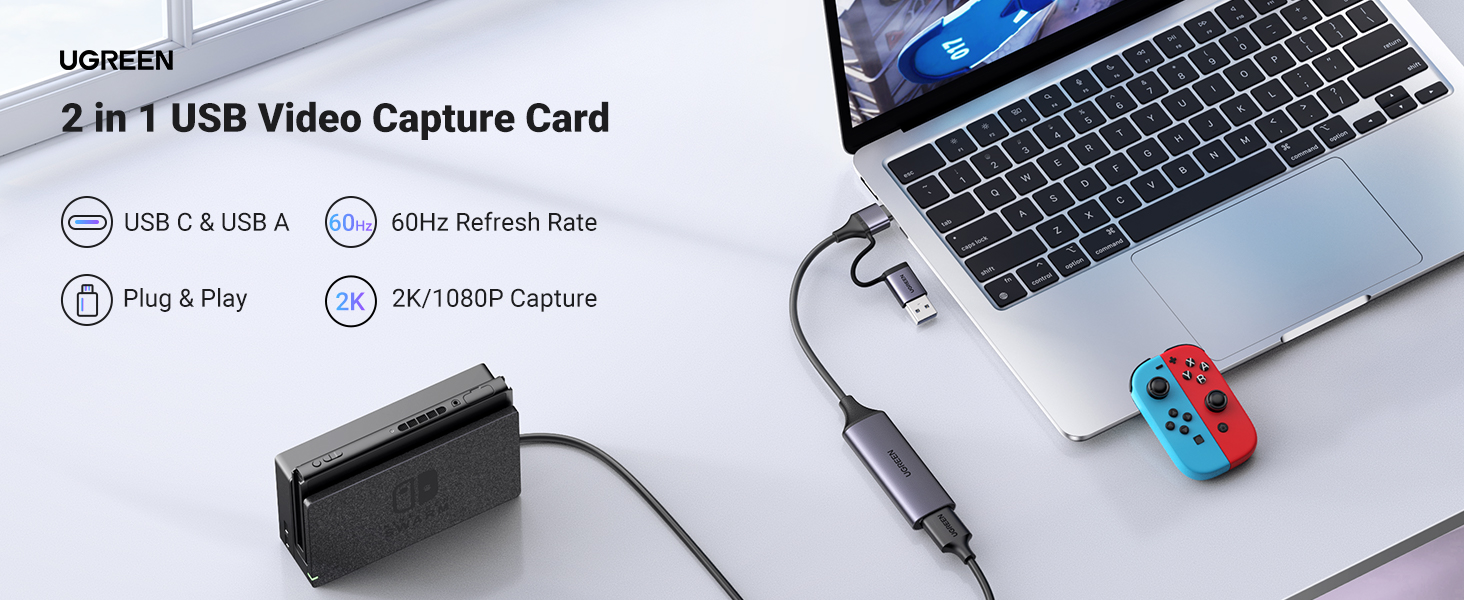
UGREEN HDMI to USB C Video Capture Card features 1080P@60Hz for smoother live streaming and video capturing, driver-free setup and powerful chipset to maintain stable stransmission.

HDMI to USB C Video Capture Card Thunderbolt Streaming Device 1080P@60FFPS
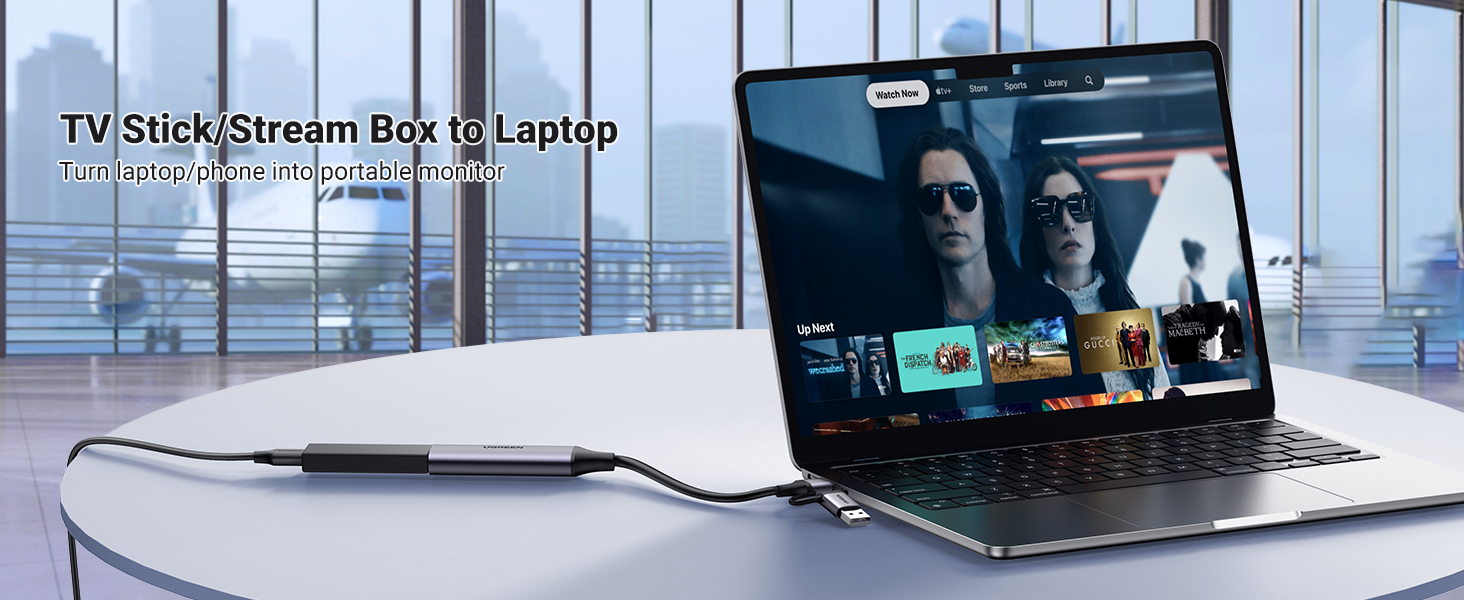
Turn Laptop/iPad/Phone into Portable Monitor
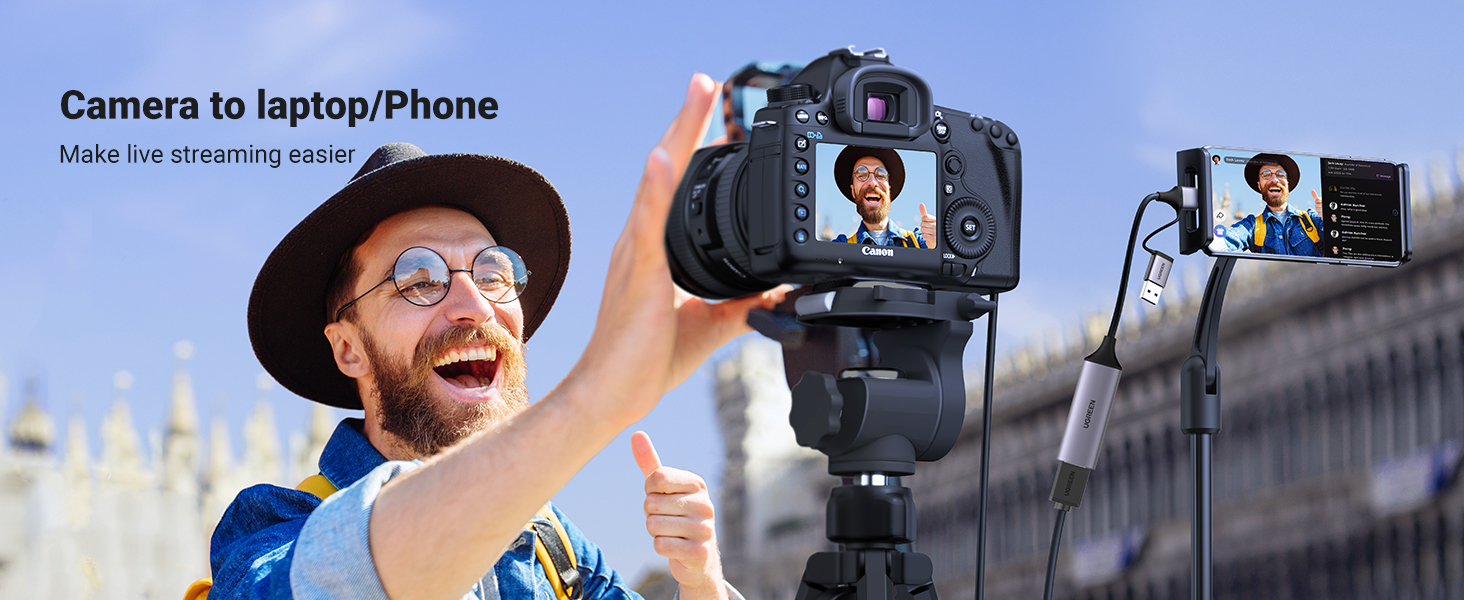
UGREEN HDMI to USB Video Capture Card allows you to use iPad Pro/iPad Mini/iPad featured iPadOS 17 system, MacBook, iMac, laptop, PC, phone as a monitor for NS Switch/PS5/TV Stick/camera, which makes it easier to play games and watch your favor shows on-the-go, gets clear preview on phone screen while taking pictures.
Plug-and-Play Simplicity
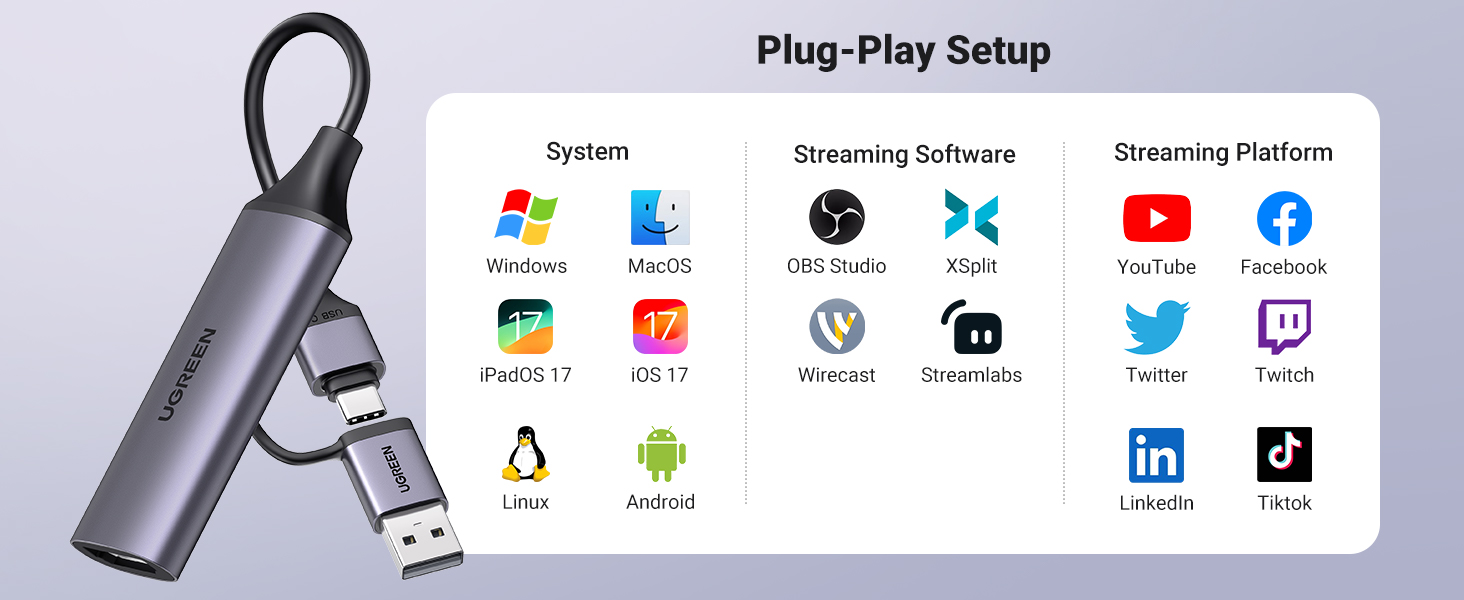
UGREEN HDMI USB C Video Capture Device plugs and plays on iPad Pro/iPad Mini/iPad featured iPadOS 17 system, MacBook, iMac, laptop, ChromeBook, desktop, phone, and other devices with USB C/USB A interfaces. Driver-free for streaming software and platform, like OBS Studio, XSplit, Dacast, Streamlabs, QuickTime Player, Twitch, YouTube, Facebook, Twitter, Tiktok, Discord. Perfect for live streaming and footage recording.
1080P@60FPS Capture & 4K Input
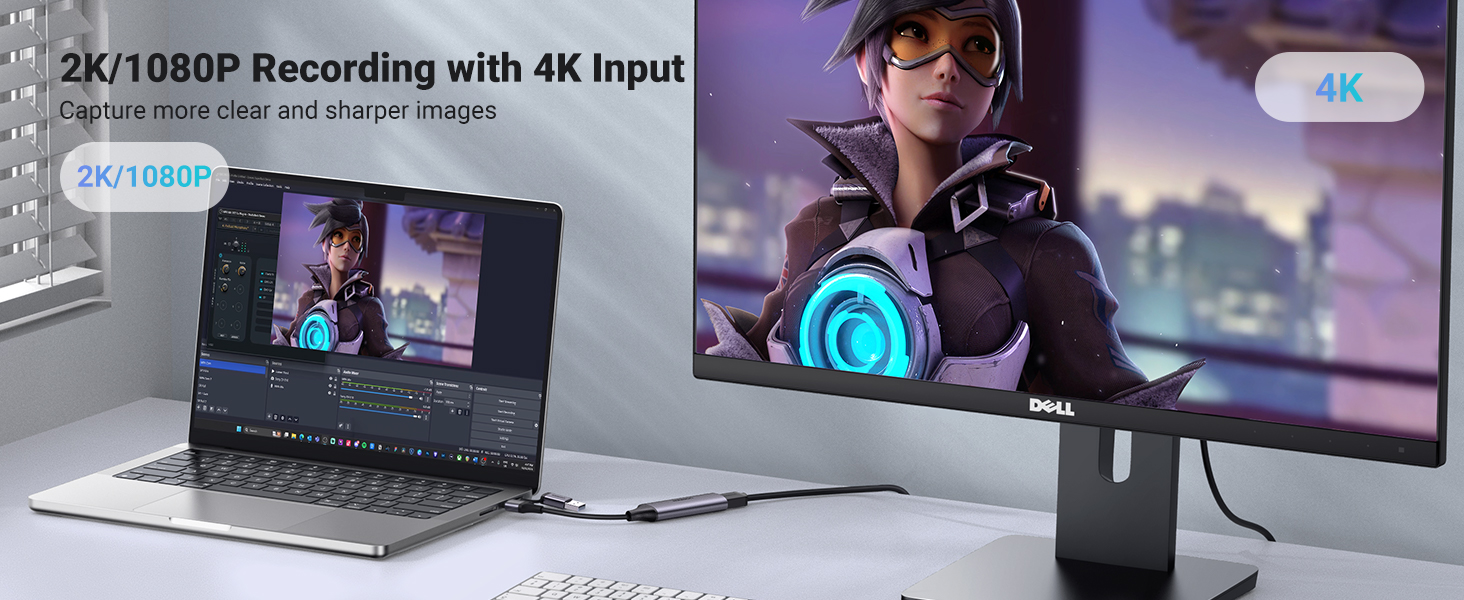
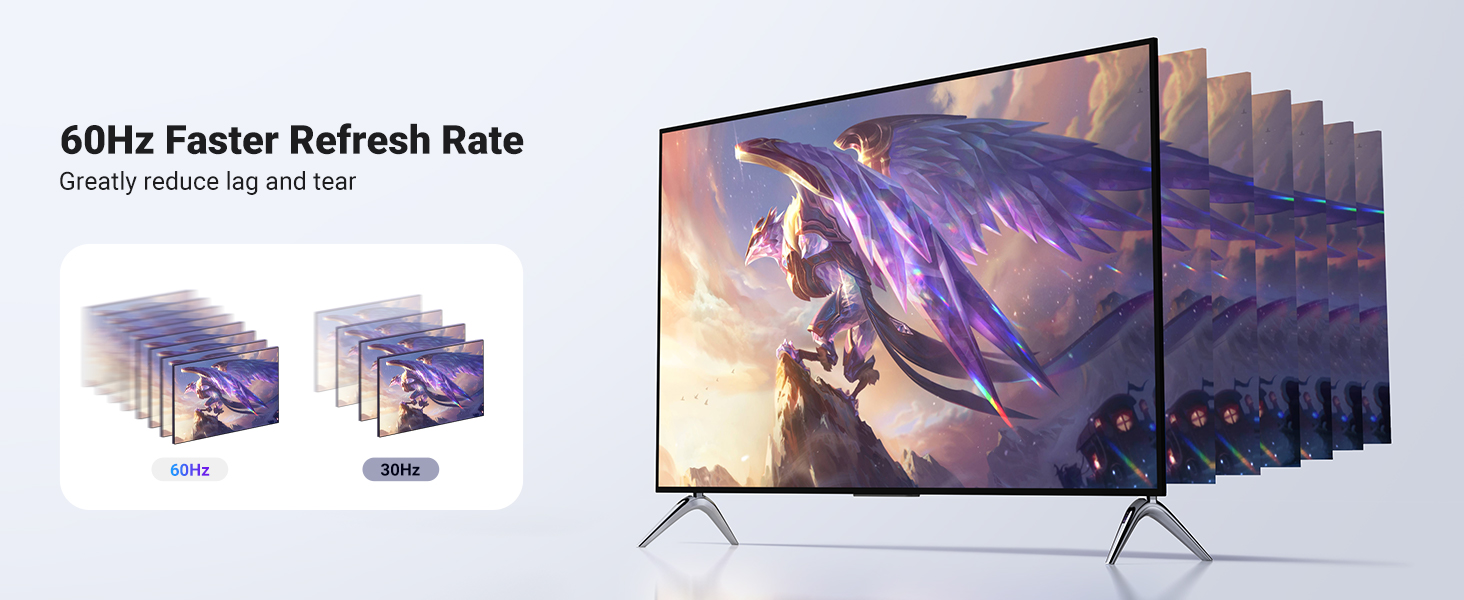
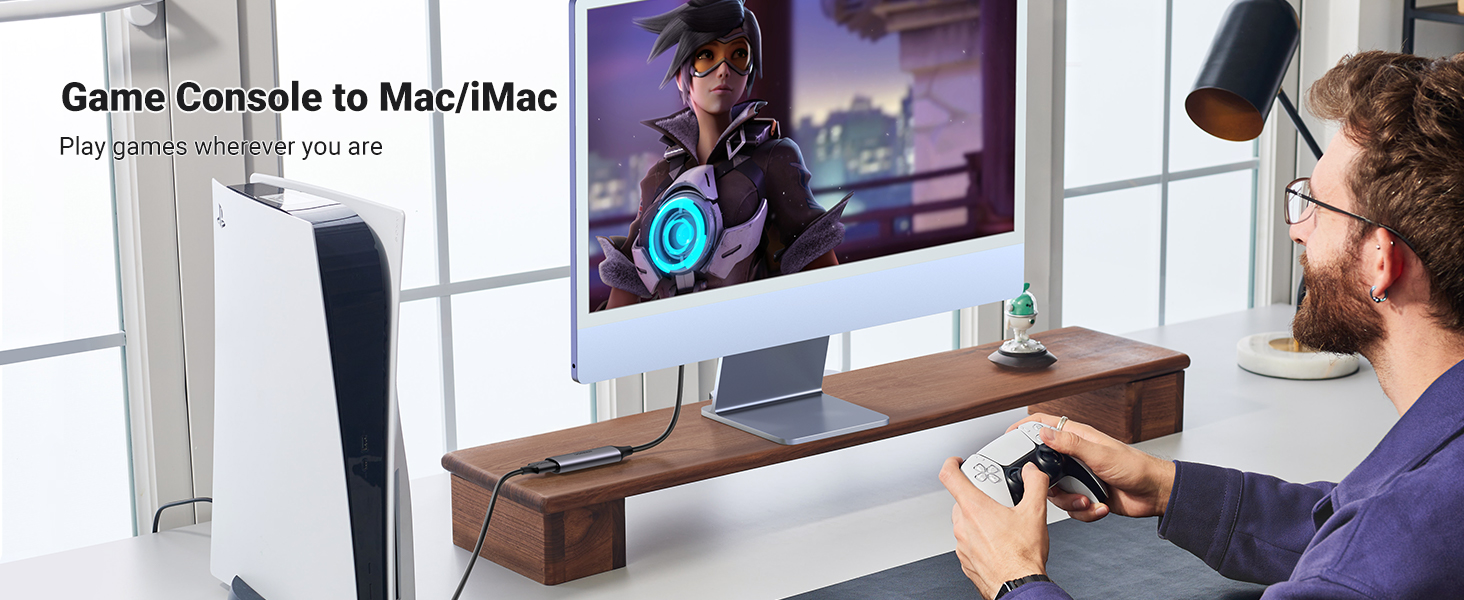
UGREEN HDMI to USB Type C Video Capture Card provides 1080P/60fps for video capture/recording, and 4K@60Hz(4:2:0) or 4K@30Hz(4:4:4) for video source. The 60FPS Thunderbolt Video Capture Device records images more clear and sharper without lag, compared with 1080P/30fps HDMI capture cards. The 4K Video Capture Card won’t compromise your personal gaming experience on NS Switch, PS5, Xbox Series X/S, or PC while streaming or recording.
Capture Card PassthroughMore HDMI 2.1/2.0 Items
HDMI to USB C/HDMI | Connector | HDMI to USB C/USB A |
4K/60Hz, 1080P@60Hz | Max Resolution | 4K/30Hz, 1080P@60Hz |
4K Loop-out | Highlight Feature | 60Hz Refresh Rate |
iPad/Switch/Camera | Compatibility | PS5/Xbox/TV Stick |
HDMI to USB C/HDMI | Connector | HDMI to HDMI |
4K/60Hz, 1080P@60Hz | Max Resolution | 8K@60Hz, 4K@120Hz |
4K Loop-out | Highlight Feature | Support 8K/HDR/HDCP |
iPad/Switch/Camera | Compatibility | Laptop/Monitor/TV |
HDMI to USB C/HDMI | Connector | HDMI to HDMI |
4K/60Hz, 1080P@60Hz | Max Resolution | 4K@60Hz, 1080P@240Hz |
4K Loop-out | Highlight Feature | Support 4K/HDR/HDCP |
iPad/Switch/Camera | Compatibility | Soundbar/Mac/PC/TV |
HDMI to USB C/HDMI | Connector | USB C to HDMI |
4K/60Hz, 1080P@60Hz | Max Resolution | 4K@60Hz, 1080P@240Hz |
4K Loop-out | Highlight Feature | Support 4K/HDR/HDCP |
iPad/Switch/Camera | Compatibility | iPhone 15/iPad/Phone |
- HDMI Video Capture Card

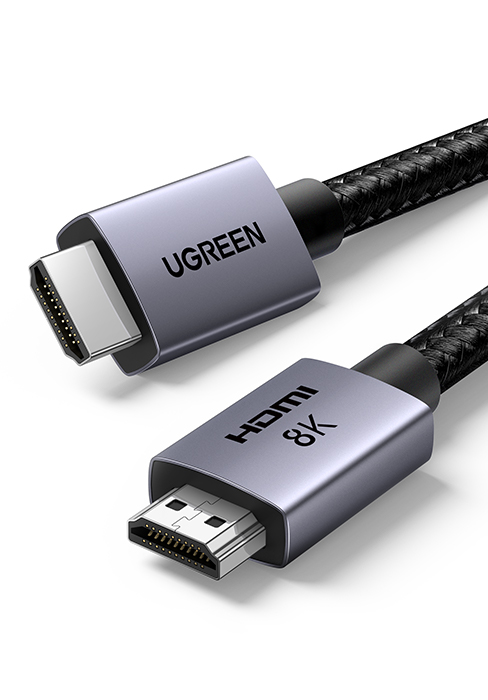
- 8K HDMI 2.1 Cable
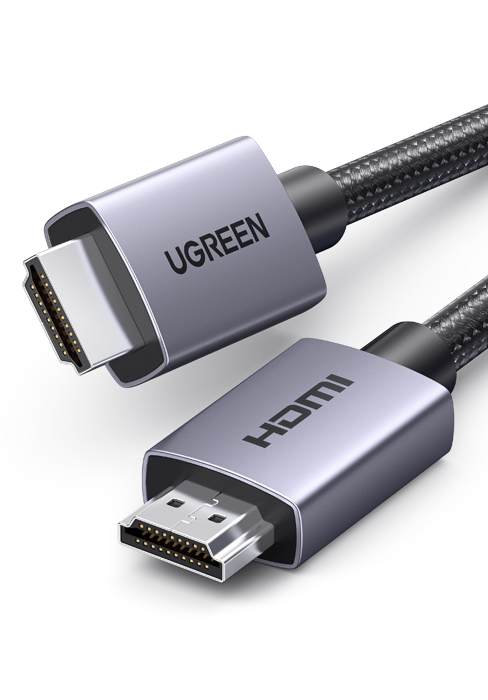
- 4K HDMI 2.0 Cable
- 4K USB C to HDMI Cable

Adattatore HDMI a USB-C
Se hai mai pensato di utilizzare il tuo iPad come monitor esterno, questo Adattatore HDMI a USB-C la soluzione che stavi cercando! Questo piccolo dispositivo incredibilmente utile per acquisire segnali video da HDMI tramite una porta USB-C, trasformando il tuo iPad in uno schermo extra in un attimo.
L’adattatore facilissimo da usare: basta collegarlo alla tua sorgente HDMI (come un laptop o una console) e all’iPad, e voil, hai un secondo monitor pronto all’uso! perfetto per chi ha bisogno di uno schermo aggiuntivo per lavorare o per giocare. L’immagine chiara e fluida, il che rende l’esperienza davvero piacevole.
In poche parole, questo adattatore un accessorio indispensabile se vuoi sfruttare al massimo il tuo iPad. Facile da usare, pratico e con una qualit video ottima, un piccolo investimento che pu fare una grande differenza nella tua configurazione!
Does what it's designed to do well
I’ve got a few Ugreen devices now and they’ve never let me down.
This is well made. Light and easy to use and very useful.
It captures 1080p with no problems at all.
Good quality video capture card
UGREEN’s products are good quality and it’s a brand I trust. This HDMI to USB C Video Capture Card is fairly simply to use for non-techies like myself and is plug-and-play.
The video capture card has a USB C connection and also comes with a USB A adapter. It has an HDMI input port. The quality is very good.
Setting the card up on my Windows 10 laptop was easy and no driver was required. UGREEN recommends using OBS studio software which can be downloaded for free.
Connecting my DSLR camera was a simple enough job. I would recommend the product.
Great quality from UGree
Build quality is superb as always from UGREEN.
Having said that I did encounter some heating issues when connected to my PS5 – Took me a little while to figure that I had to disable the HDCP and then it was working fine – Some latency but not bad enough to render it completely unusable.
I have tried it once and it worked and so I cant complain. I will update if I encounter any further issues.
Used with a Canon DSLR
Plugged my DSLR’s mini-HDMI to HDMI cable and it worked flawlessly. Using open source program OBS it got immediately detected as a video capture device without a need for drivers on Windows 11
good for almost all educators and most gamers
This does everything I would expect up to the 4k standard and whilst I am less a gamer and more a content creator for education (well, at least for the purpose of justifying the purchase), I think this does a great job of what it is for.
Nicely built, works well, and does not look or feel cheap, so long as you do not really need anything more than a 4k or some specialist media set up, this is likely to work just fine for you.
Works well but not straightforward.
I got this for my Xbox mad son who wanted a way to easily and affordably record his gaming. I liked the description of “plug n play” and assumed it would be a simple inline connection between the console, and computer.
In a way, it is simple, but you do need to download additional software and a bit of knowledge, this cam be a little more complicated. It did work and the results were decent, I think I needed to tweak the settings as the resulting video wasn’t as crisp as I’d expect.
Overall the device feels well made and it does work well providing good audio and video output. However, it does need a bit of time investment to get the best out of it and obviously you need a device to plug this into, it doesn’t record to internal storage etc.
Absolutley cracking!
I love this thing. I tested it on a Microsoft Surface pro 9, and it worked plug and play with no driver installs or messing about. I was able to record an HDMI source from another PC at 1080p60 with good colour and no visible stuttering or dropped frames. It is very small and neat, physically it is reassuringly heavy for the size with a sturdy metal casing.
Although it is obviously useful for recording and streaming, the best use I’ve found for it that I can turn any compatible laptop into a second monitor for my PC! Simply plug it in, open webcam and select it as a source and you have a low latency HDMI input that can be displayed full screen. For tasks such as setting up a Raspberry Pi this is a life saver, as it means I don’t have to pull out a monitor for troubleshooting, I can just use the laptop I am programming with.
This has earned a coveted place in my every day backpack and has already proved invalulable. If you are a techie, get one, you won’t be disappointed!
Great value video capture card from a solid brand
UGreen make some very good products for some keen prices. I own quite a few different products from the brand and have always found them to be well made and to work effectively.
This video capture card is great if you need one.
60FPS at 1080 is good for a usb card and it also works across most platforms without a need for driver, so ipads, chromebooks, windows, mac etc.
You need a HDMI lead to use it, but to connect to your devices it works with usbc or usb2.
Good value capture card - though a bit of work to learn OBS!
This is a great little capture card – small, effective, and tolerably easy to use (for a capture card!); it’s also great value (currently 18.99). It’s small enough to be portable and not too pricey for amateurs (like me!)
While in the long term I plan to use this with a camera, I tested it using a PC and tried to test it on my phone. It should work well for recording gameplay on a phone or PC, as well as for cameras.
It takes an HDMI input with 2-4k, and can handle 1920*1080 at 0fps. I tested it with a couple of apps, and was impressed with the lack of lag – imperceptibly small to my naked eye, at least.
UGreen go out of their way to make it easy to use, with some really well-produced little instructions, complete with pictures, on how to set it up with OBS, which is standard software for streaming. It’s nice not having to use something proprietary.
Despite the instructions, there is definitely a very steep learning curve and you can easily run into unforeseen issues – for me it took a while to work out that my PC was treating it as a separate screen, so I had to mirror what was happening on my own screen to that screen. That probably should have been obvious, but it’s still not for tech novices. More problematically, my Motorola phone refused to transmit its screen and insisted on entering a special mode designed for using your phone as a desktop computer when attatched to the screen. Doubtless that mode can be turned off, and it’s my phone’s fault and not UGreens. Still, it illustrates the kind of issues that might be necessary to work through, using this or any other capture card.
In the end, though, once it’s set up it’s simple and runs easily in the background, allowing you to capture nice 1080p footage with sound. Ugreen’s little unit is nicely made and packable and should make video capturing, video creation, and streaming a lot easier.
I’ve got several Ugreen high-powered USB charging docks and various cables from them as well that I’ve been impressed with over the last few years, but I was surprised when I saw their name on a video capture card, especially around the 20 price mark. My hopes weren’t high of a decent product at that price, but I’ve been surprised.
For the last few years I’ve tested a number of video capture cards similar to this, but I always go back to the Elgato HD60S that I used to have, and more recently the Elgato HD60X. Both of those are products I purchased myself and have reliably seen me through over three years of YouTube gaming videos. They’re also much more expensive than the kind of capture device we’re looking at here, most crucially because they’re video pass-through devices. That means that it captures the signal from your device (in my case a PS5) on the way to your display (in my case an LG OLED telly). The Elgato HD60X does that without interrupting the quality of the signal from the PS5, so I maintain my HDR and VRR features that the HD60S removed. Those kinds of video capture devices are crucial if you want to play on a separate device to your computer, which I do.
If you’re perfectly happy with playing your games on your computer while recording, rather than another display device, then these more budget-friendly video capture devices might be all you need.
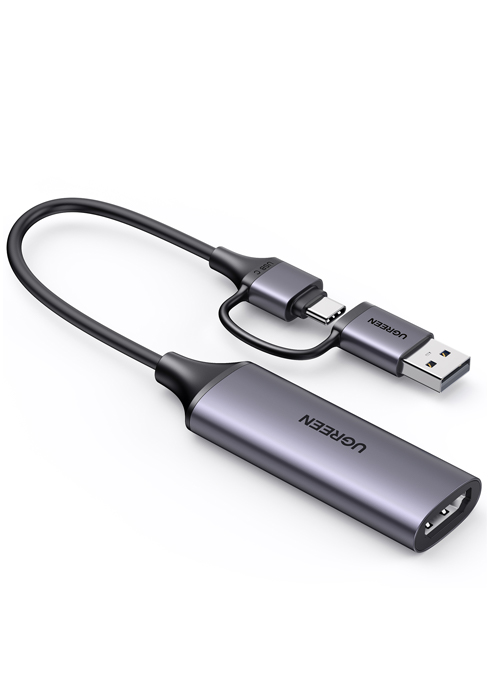
The UGreen video capture device is small item with a HDMI port on one end and a fixed USB cable on the other, with a choice of either USB-A or USB-C port attachments to plug into your computer.
Plug the HDMI cable coming out of your console and into the UGreen. Connect the UGreen to a spare USB-A or USB-C slot on your computer. This may override your Windows sound settings so check that everything is as it should be. In my case it over-rode the default microphone from my Blue Yeti to the UGreen. If it does that, change it back to what you want it to be.
From here, you’re going to need some software to capture your video on. The UGreen does not come with an software so you’ll need to provide this yourself. In fairness, while Elgato supplies a piece of software for video capture, I don’t use that myself. Like most people I will use a free open source application such as either OBS Studio or, my own preference, Streamlabs OBS. What you use is up to you, but I’ll show you I got Streamlabs to work correctly.
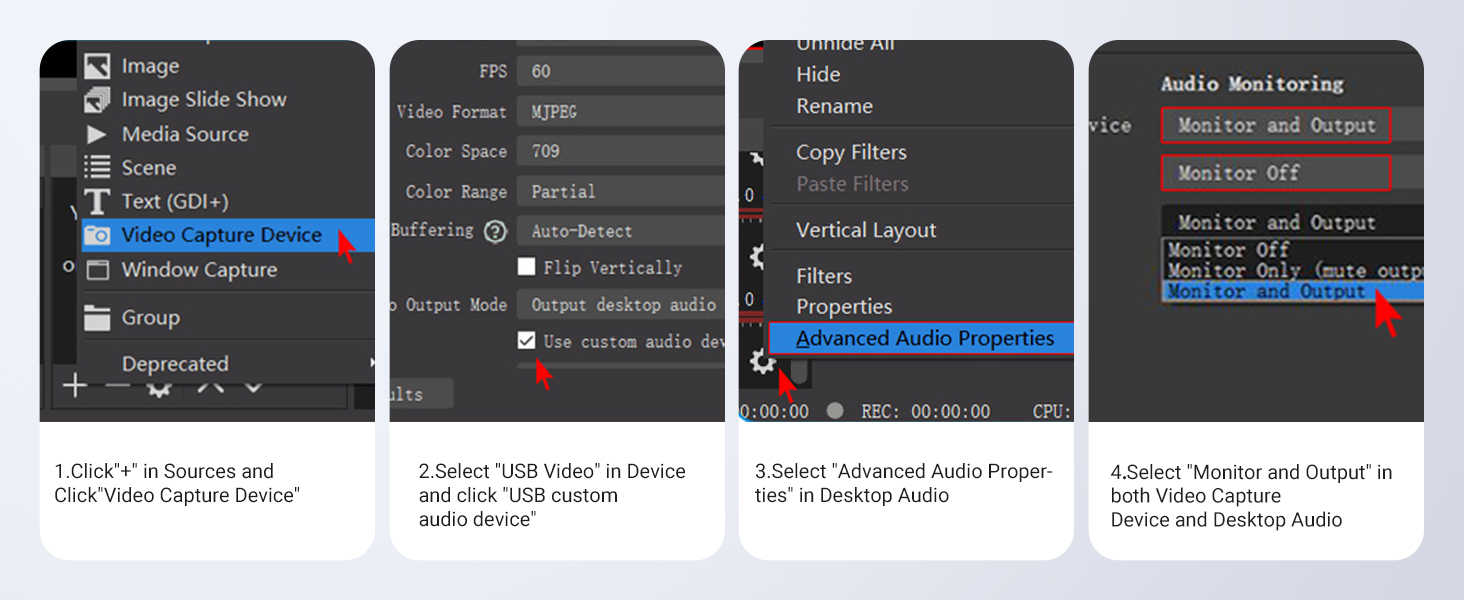
If using Streamlabs you need to add the UGreen to your sources. So, “Add a new source to your scene” by clicking the + in a white circle. Select “Video Capture Device” and then “Add Source”. The next pop-up will list any video devices you currently have connected, such as webcams, but move the slider where it says “Add a new source instead”, and then click “Add source”. You’ll get an opportunity to name the device, or leave it as the default “Video Capture Device” name. When happy, click “Add Source”. On the next window there’s a drop down which will list all of your available devices, and hopefully the Ugreen will be there. Mine said “UGreen 25854”. When you select that after a few moments the screen will refresh and you should see a display from your console (assuming it’s on of course).
At this point, I had video but no sound. It took me a little while to figure out why not, which included trying the UGreen plugged into USB-A and USB-C, turning other devices on an off, playing around with Windows Sound Options and tearing apart Streamlabs looking for the correct option. It turns out that on the same screen that you selected Ugreen from the drop down you need to scroll to the bottom and tick the box that says “Use custom audio device” and from the drop down select Microphone (Ugreen). Then, and we’re nearly there, you need to go into the Advanced Audio Settings in Streamlabs, which you access by clicking on the little cog on the Mixer window next to any of the device, expanding the Ugreen device and changing the Audio Monitoring to “Monitor Only (Mute output)”. At that point sound roared out of my speakers as I’d turned the volume up to max trying to get it to work.
Yours may work differently, but that’s what I had to do to get mine to work. A bit of a faff and no instruction on that anywhere, but having sussed it the video capture device is spot on.
I’ve been playing Gran Turismo 7 on it and there is very little lag between input and what I’m seeing on my computer monitor. I’m not saying that pro-gamers will be totally happy, but I think it’s perfectly reasonable for the majority of users.
From what I’ve seen, for the cost of the unit, I’m very impressed. It took a bit of figuring out to get it to work with Streamlabs, but critically it does work once you suss it out. The capture device only gets slightly warm with use, not hot like I’ve experienced on others. It works fine on USB-A or USB-C connections. Recordings of video and sound are good. So, yes, short of spending anything between 5 and 10 times as much on an Elgato or similar high-end capture device, I think this is a great entry point into the world of game streaming.
Excellent Capture Card
First time I’ve tried a capture card and I couldn’t be happier. This offering from UGREEN is their usual high quality build with gun metal appearance and robust feel you come to expect from their products. Getting it working is a breeze as everything is just plug and play as it’s recognised instantly and using OBS software I tried connecting it to my daughters Switch just to test it and I’m blown away. It’s so simple to install and I haven’t had any issues in set up or usage – highly recommended.
If you're familiar with OBS, this will be easy
A very neat little video capture card that works just fine for capturing gameplay from a handheld device. I’m familiar with OBS, having used it for years to record for my little YouTube channel, so this was not unfamiliar territory. I used to look at the great chunky expensive video capture units and despair of ever being able to use one, so to have this tiny form factor unit that powers itself from USB is remarkable. The set-up is almost plug-and-play and I was able to get some very nice captured footage without issue. Where things get more complex is in doing what I half hoped would be just as simple, and using this to connect my big DSLR camera’s video output directly into OBS. The thing noped out on me, which means that I just don’t know how to connect it up yet. I did also have issues with captured audio. That isn’t to knock the unit at all; it’s just a sheer cliff of a learning curve. Be aware that there will be things about using something like this that will require patience and good use of a search engine. It may also involve other pieces of equipment and/or extra cables. At this price point though it’s worth taking a punt to see if you can get your project to work with this.
Plug and play (movies, video games...)
Video capture devices are pretty standardised these days; they all run via USB and come up in Windows (et al) as a “webcam” video capture device.
And that’s what this does.
Video quality seems decent – with the caveat that 4k content will be downsampled to 1080p – and there doesn’t seem to be a significant amount of lag, though I’m not sure I’d try to play any twitch shooters through it.
And it’s also nice to see that there’s instructions included on how to use this with OBS (a popular/free live-streaming tool), as that simplifies things massively for less technically inclined folk.
So overall, it definitely does the job!
UGreen Capture Card Is Actually Grey
This is a good capture card, and demonstrates the increasing miniaturisation of electronic components in the last few years.
I have another HDMI Capture Card, but it is 10 times the size of this, and requires a separate power supply.
This one is the size of two fingers, and takes its power from the USB socket it is plugged into.
The video input is an HDMI cable with 2K–4K at up to 60Hz, and it is converted to 1080p at 30Hz / 60Hz.
I was able to test the card successfully using VLC, Flashback Express, & Microsoft Clipchamp.
These all worked OK, but have their difficulties and foibles, which can make them a challenge to use.
The recommended software is OBS Studio, and I think that would work very well, but I was unwilling to install it on my already over-burdened laptop.
(The package comes with an information card which assists you with the correct settings to use with OBS Studio).
When just displaying the picture on the laptop, there was minimal lag / delay, but when recording the video the delay was quite noticeable, but I suspect that was due to my slow laptop rather than the interface itself.
It is worth mentioning that it is not easy to find an HDMI source which doesn’t have HDCP copy protection… I found that Freeview set-top boxes and Smart TV Dongles (eg Roku) wouldn’t record and put up an HDCP error message.
I have no video capture software on my phone so I was unable to test the capture card on Android.
The card becomes quite hot in use, but probably no more than is expected.
I already have an HDMI capture card, which comes with its own software and that combination works really well and is very easy to use. The UGreen card doesn’t come with ready to use software, which means that the learning curve will be steeper for most people, and will discourage those people who don’t have experience in this area of video capture and editing.
Great Quality
This is a really nicely made quality adapter. HDMI with USB C / A adapter.
I needed a 1080 / 60Hz adapter, and this is perfect. Whilst there’s probably cheaper one’s on the market, be aware not all operate at 60Hz. So check your requirements.
It’s a nice touch having the USB C to A adapter reducing the need to purchase one. These alone can cost a few pounds.
5/5
Works perfectly
This capture card is very good, captures excellently at 1080p 60 FPS with almost no input lag.
Works just as well via either the USB C or USB A connection
The build quality is very good, it’s also very light and compact.
All of the sockets and plugs fit nicely, no issues there.
This can be used for live streaming, standard video capture or for converting a photo camera with hdmi output into a webcam.
I’m very happy with this, worked without any issues at all.
Out the box ready to Capture video
Capture cards can come in many sizes and the majority of captures cards at this price mark can sadly be cheap imitations of better brands leading to poor performance and substandard recording and capture. To say that I was instantly impressed with this “inline” style of video capture device from UGREEN would be an understatement. Designed with a dingle HDMI Port, this is perfect for recording to a laptop or PC when required thanks to the fact it works with USB C and A thanks to the built into the cable adaptor makes it so painless to set up.
For purposes of testing. I used my Nintendo Switch console and a spare docking station, I was able to feed the HDMI from the docking station into this capture card and connected to my PC via USB and the software I was using for testing was OBS, used for recording game capture and for streaming. OBS detected the capture card immediately in the Video Sources list as UGREEN, sound and video came via the USB with no lag at all, capturing video at full 1080P. It was so painless to setup that this is easily something I would take with me when going to Gaming preview events to help capture footage and gameplay for videos but also when I need something quick and painless to just plug in and start recording and streaming.
For the asking price, amazingly impressed and you get what you paid for with this capture card, well built and sturdy, perfect for taking on travels and the plug and play nature makes this a breeze to use. Very impressed.
Usual UGREEN quality. Solid build and just works without a fuss.
The device is typically well built, sturdy little thing, well finished.
In the box you get a basic connection guide and a quick start guide for that details use with OBS Studio, VLC player and Guvcview (which is handy for Linux users) for video capture, recording or streaming. It has USB-A and USB-C connectors so it’s widely compatible for desktop, laptop and mobile devices.
I personally tested it with OBS Studio and it gave a solid, sharp input with little noticeable lag. Using a streaming protocol is easy enough under OBS using a standard RTSP protocol. If you have secondary device you check check out the lag times for yourself by viewing your own HDMI output from your graphics card and viewing it on your secondary device. Honestly I didn’t really see anything untoward. There was a slight delay, but it was still actually responsive enough to game.
UGREEN has become a brand that is known for producing well made devices that just work, without a fuss. I have a lot of their devices and honestly they’ve all worked well enough. They’re prices are usually quite competitive too. This one is no different. Very simple to use and nicely made.
Works well for newbies to video capture
I remember the days of these being PCI expansion cards, with component video inputs at best and being very expensive.
This tiny little cable will take an HDMI output and let you view/record on your PC using USB. ]
I hooked up the kids Nintendo Switch and gave it a go on my Surface Go 2 laptop. I used VLC (a common freeware video player) and chose the option to ‘Open Capture Device’, thinking I was outsmarting everyone. At first, there was quite a bad lag, and opening the Media Information showed it was actually only outputting at a lowly 640×480 despite the information on the listing.
After some frantic Googling/Redditing, it transpires that VLC is quite poor at this kind of thing. I was able to eliminate most lag (by default, VLC was caching 300ms) but I’m still not sure that you’d want to use this capture device for online gameplay – I’m assuming most pros have an HDMI splitter first that allows them to see the feed in real time, while also splitting it.
Using ‘OBS’ (also freeware) should get you proper 1080p incoming footage. The instructions with this cable reference OBS for what it’s worth, so you should be up and running fairly quickly.
Pictures taken with VLC for reference.
Very good quality capture from lots of sources. Installation is quick and simple.
UGREEN Video Capture Card (B0CFQ2BMPZ)
On plugging in the capture card, my Windows 11 computer automatically installed the device and it was ready for use within a few seconds. My capture software (O** Studio free) detected the device and displayed the signal being fed to the HDMI port of the card. I captured very high quality video and audio and then edited it as a test. This capture card worked exactly as I wanted it to. I used the USB-C input but there is also a USB-A adapter. This device can capture from lots of sources. The build quality and finish are excellent. The price is very reasonable and even better value with the 5 off voucher at time of writing (Dec2023). Very pleased with my choice.
Connects my drawing graphic tablet to old MacBook Pro using usb po
I usually use a multiport hdmi power station device if using two or more monitors but the cable & device set up can take up a lot of desk space, it’s pricey and can get quite hot in summer. This is a lighter cheaper space efficient alternative if you’re travelling or have limited desk space. My Wacom intuos dupe worked fine no lag. Also quick connects my iPad, razer edge Rishi v2 gaming console to my projector & monitor. No quality loss.
Hope that helps. That said using a good quality high quality hdmi cable is key
Separate L/R audio captured, not multiplexed.
The ‘UGREEN Video Capture Card HDMI to USB Type C Capture Device 1080P 60FPS 4K’ arrived in a branded box.
I have other UGREEN branded products and have not been disappointed so was already expecting a lot from this device before I started.
It was nice to see a setup guide for OBS (Open Broadcaster Software) for those that have never used it
The capture device is well made with metal body with the free connector having a protective cap. The choice of USB A or USB C increases the options for its connection especially with USB C becoming more popular.
To test I connected my tablet to the capture card, and opened OBS I added a new “Source” selecting “Video Capture Device”. I then selected the ‘Source’ and went to its properties and selected the UGREEN capture card from the ‘Devices’ I also ticked the box for ‘Use custom audio device’ and selected the UGREEN device from ‘Audio Device.
The sound recorded was true stereo unlike some capture devices that output multiplexed stereo which unless de-multiplexed sounds like mono. Video was close to source for colour taking into account variation in display settings.
Cool device
Box contained device with connection diagram and a quick start guide for OBS Studio. Other options include VLC and guvcview for video capture, recording and/or streaming. Recognised in linux as “1de1:f105 Actions Microelectronics Co. UGREEN 25854” USB 2.0 device. Also has USB-C option for use direct with compatible tablet or phones.
Following the setup advice for OBS, was able to get a sharp and responsive capture of a HDMI input device. Could therefore record to file and RTSP stream to phone. By then plugging into graphic card’s HDMI output, could create a video feedback loop to observe lag times. They were being barely noticeable, even 3 or 4 iterations had insignificant video delay. Photo shows it with no input connected, as otherwise might have issues with copyright.